Device Management and Performance Monitoring
Devices
The Devices page lists all devices of the tenant. From here you can open each device to see its details, monitor it or connect to it. On the Devices page you can:
see all devices of the tenant, with their connection status and operating system,
search for a device,
add a new device with Add device,
manage your SSH keys with SSH keys.
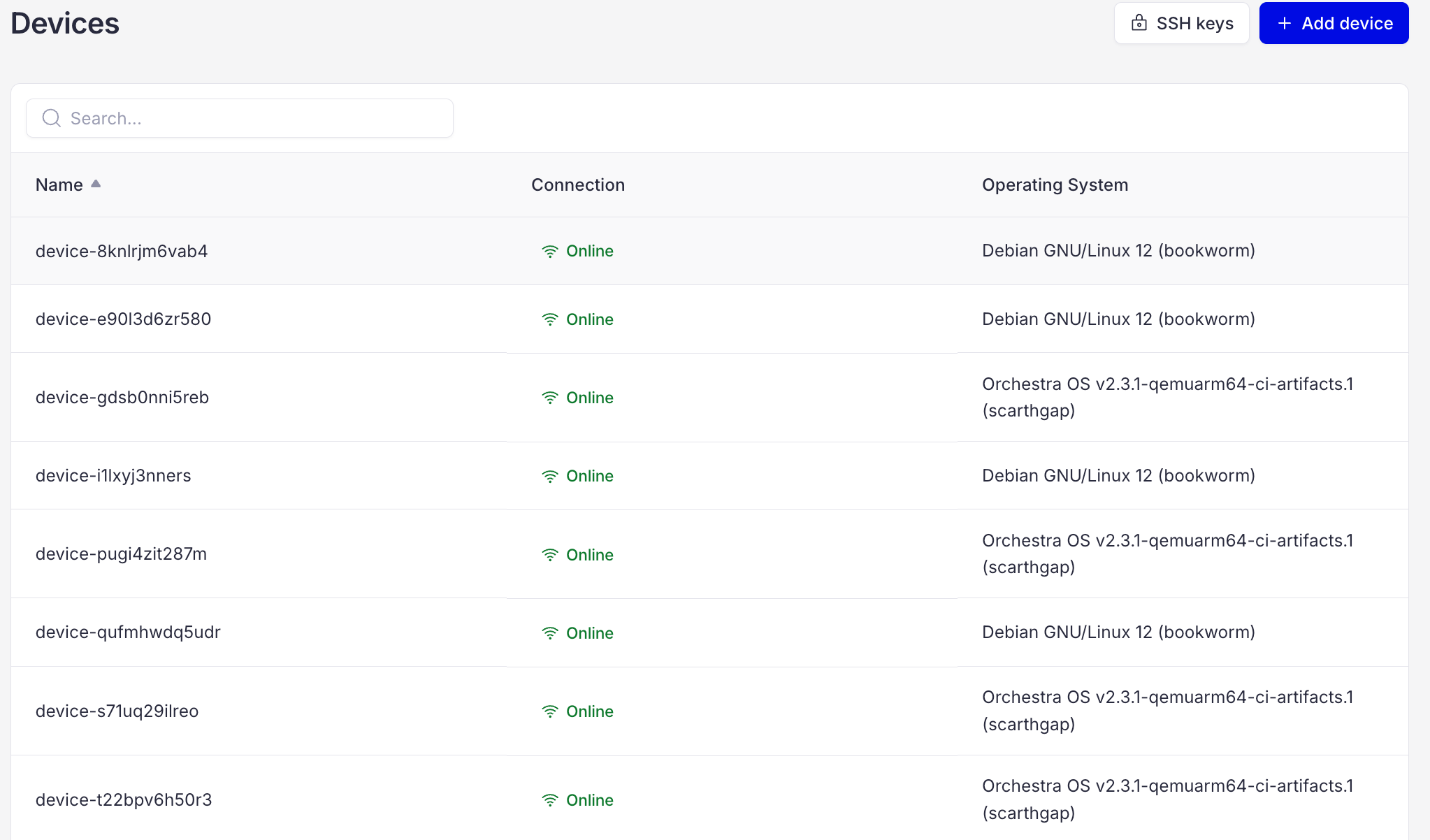
Devices page
Click a device to open its details. The device view has six tabs:
Info
The Info tab shows a quick summary of the key device information:
Device info: name, ID, hostname, last time online and first registration,
Basic Info: CPU, CPU architecture, number of cores and RAM,
On/Off states: when the device was online over time,
Operating System: host OS and kernel version.
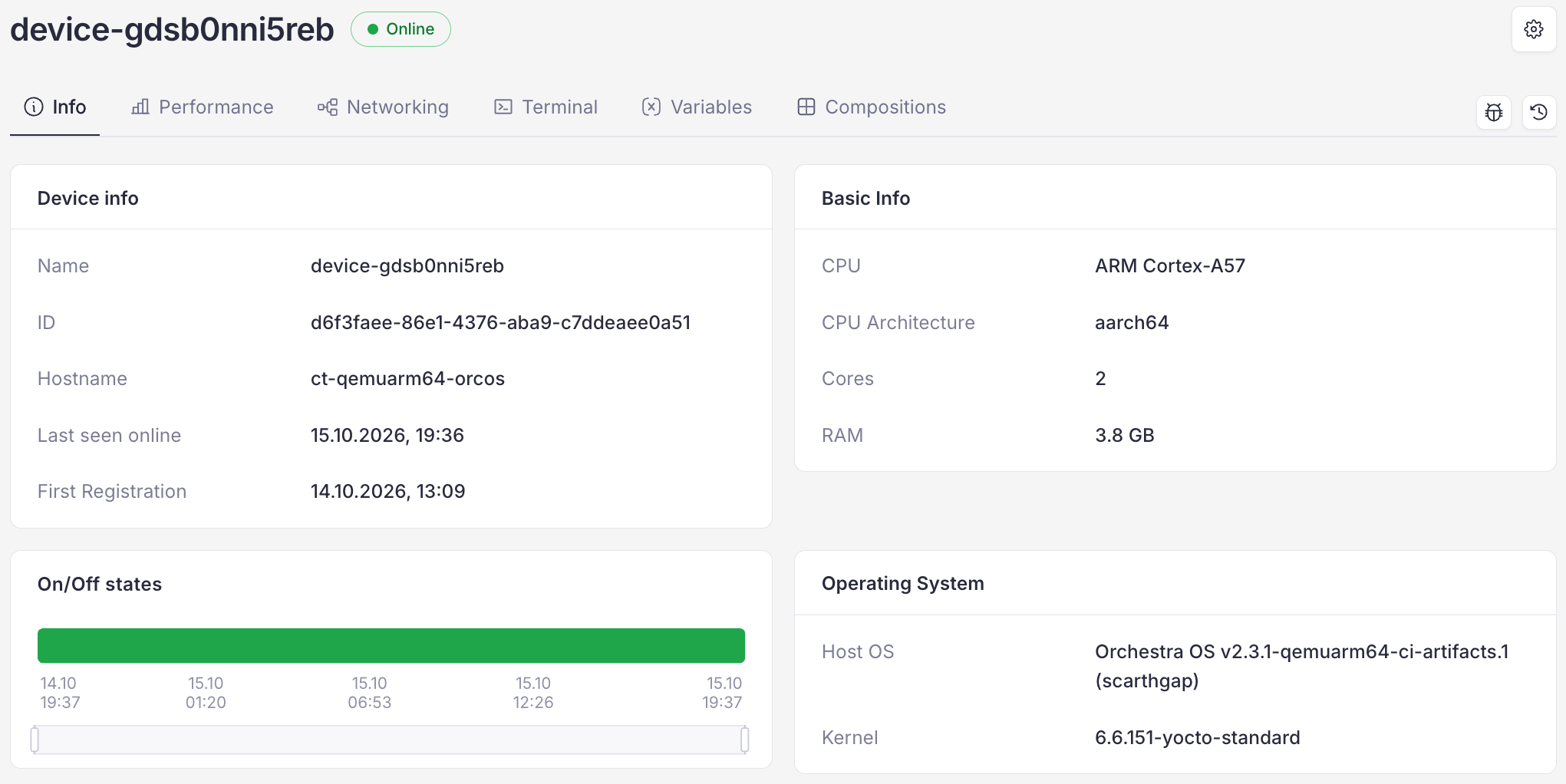
Info tab
Performance
The Performance tab gives a deeper view of the device metrics. It shows charts of:
CPU usage,
memory usage,
incoming network traffic,
outgoing network traffic.
Tip
Use the list above the charts to show the last 1 hour, 6 hours, 24 hours or 7 days of performance.
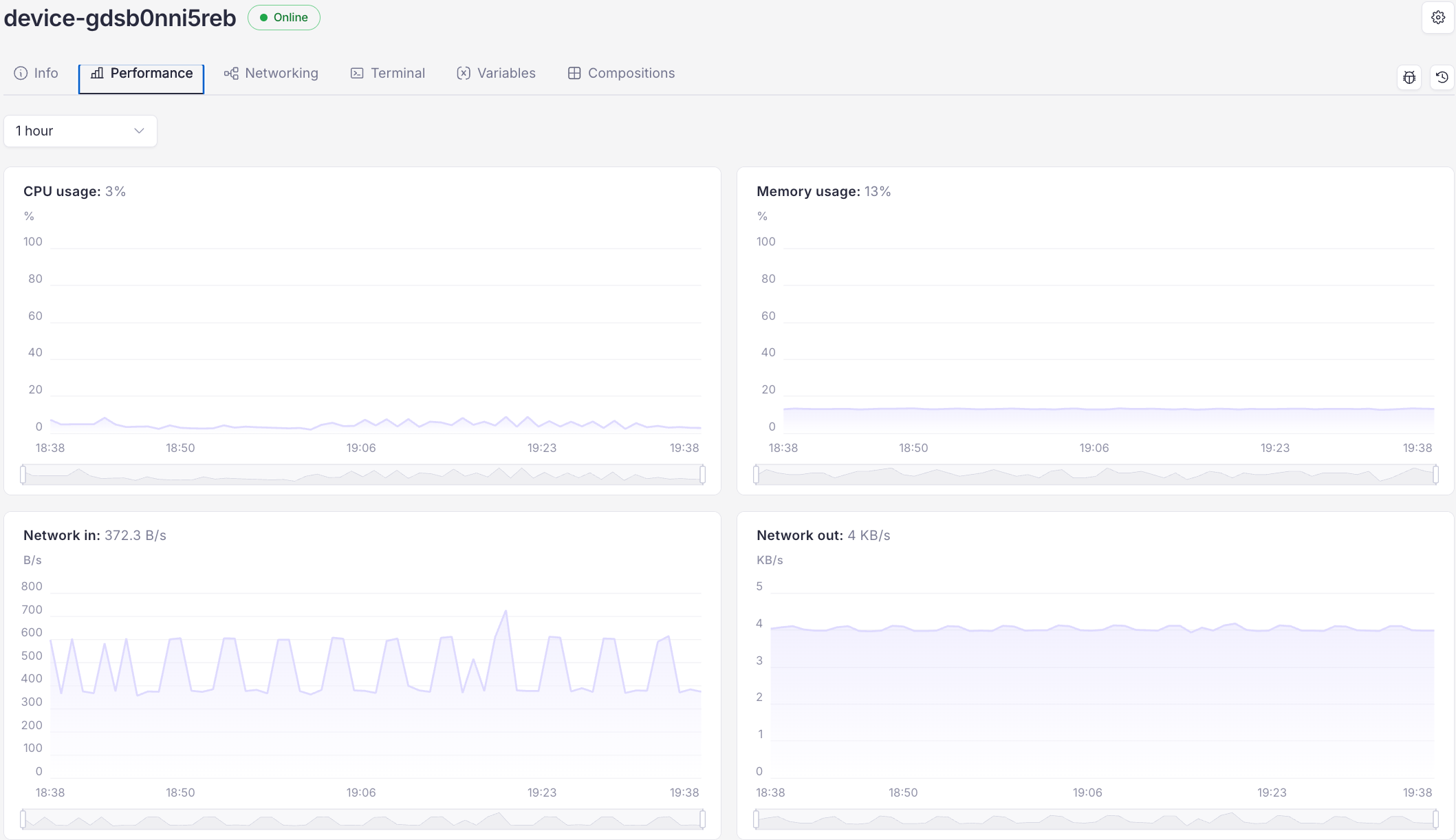
Performance tab
Networking
The Networking tab shows the status of all network interfaces of the device, for example their IP addresses, hardware address, default route and DNS.
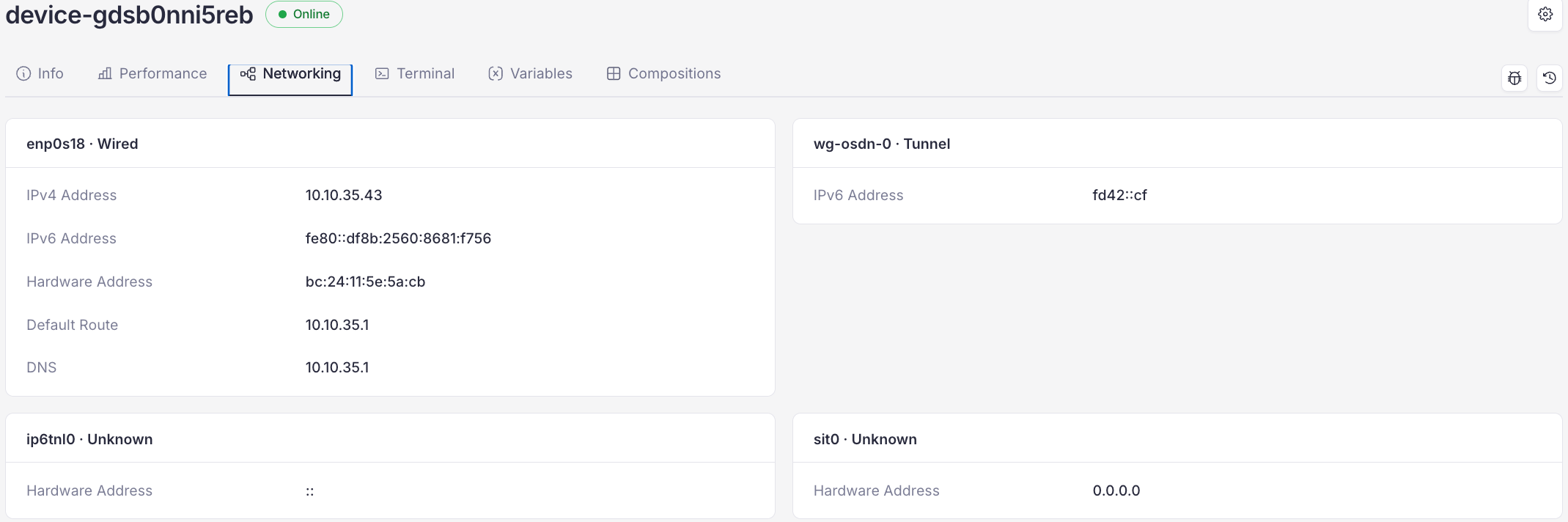
Networking tab
Terminal
The Terminal tab gives you quick SSH access to the device. You can:
click Start session to open a terminal in the browser,
click Connect from your terminal to connect from the terminal on your computer.
You can open several sessions with the same device at once.
Orchestra keeps the terminal fast thanks to WebTransport technology. Whenever possible, your browser connects to the device directly. If a direct connection isn’t possible, Orchestra sets up a proxy for you.
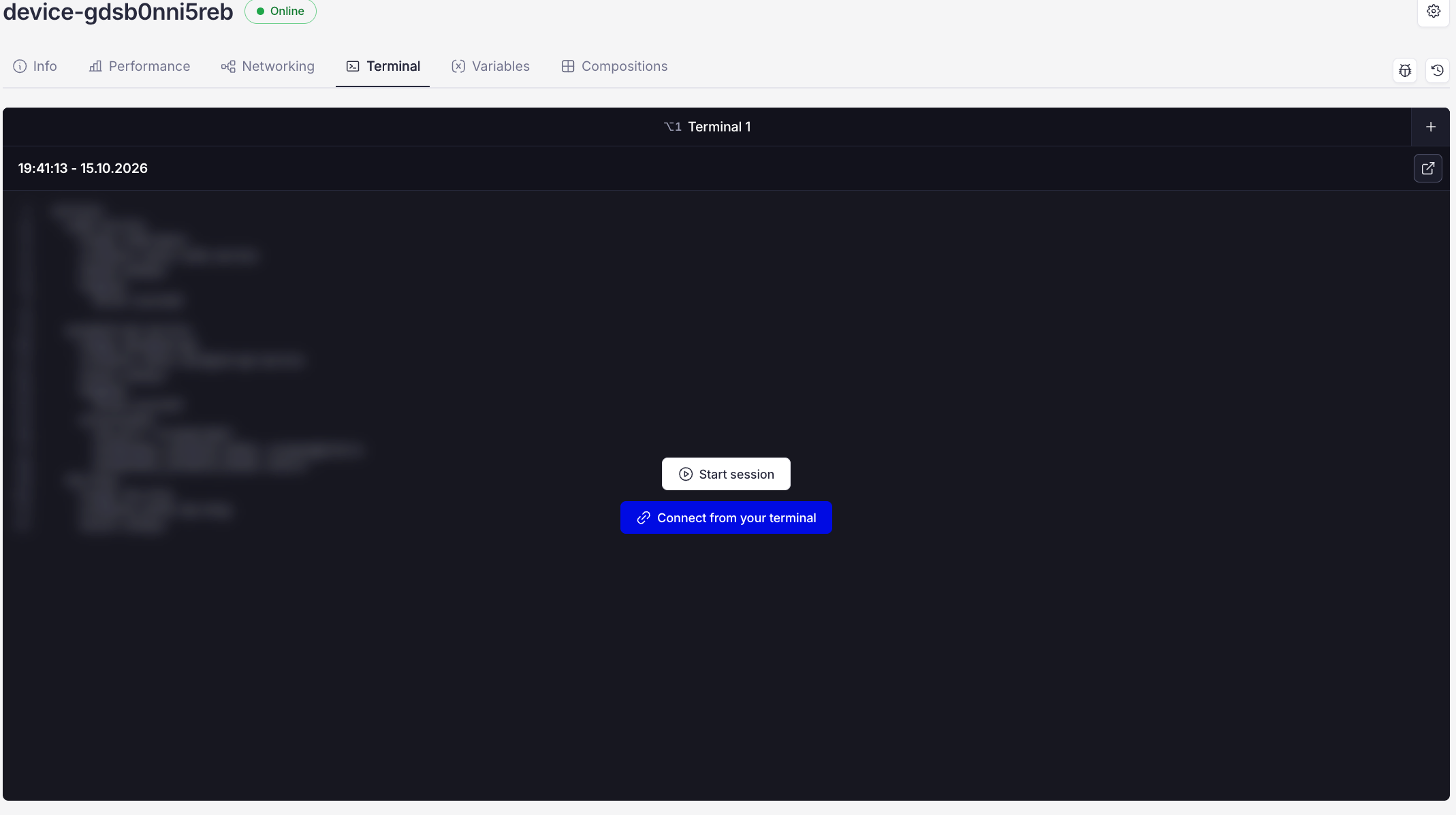
Terminal tab
Connect from your terminal
Click Connect from your terminal.
Select your operating system: macOS, Linux or Windows.
Copy the command and run it in your terminal. It creates an ed25519 key if you don’t have one, and copies the public key to your clipboard.
Paste the public key, or click or pick the .pub file.
Optional: enter a key name and click Store the key to use it next time.
Click Issue certificate.
Note
Your private key never leaves your computer. Only the public key is stored.
Tip
If you don’t have a key, click Generate a key pair for me instead.
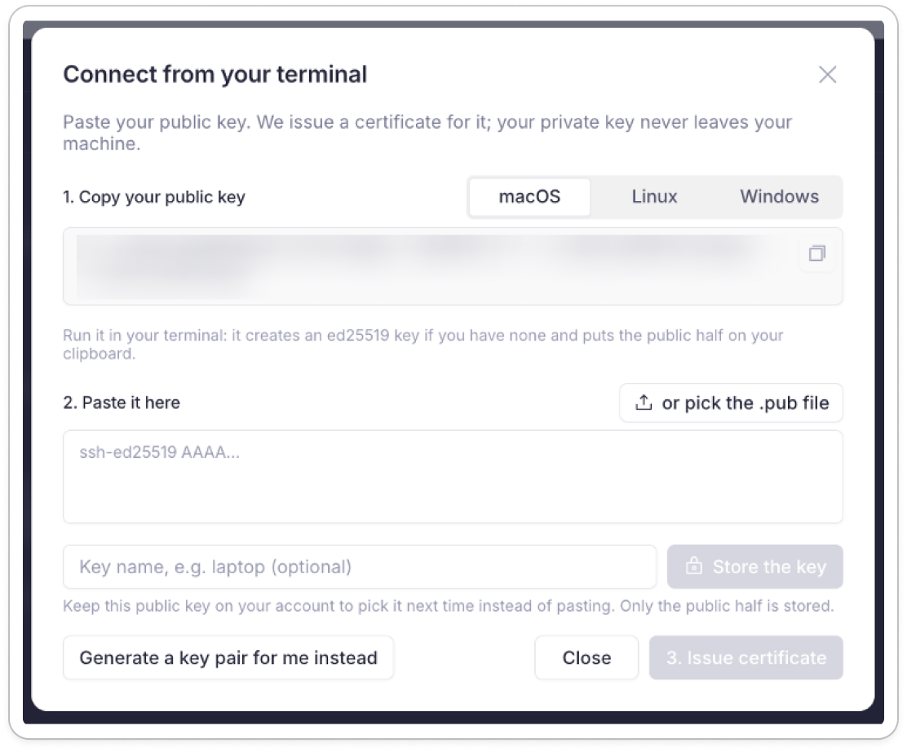
Connect from your terminal
Variables
The Variables tab shows the variables that customize the behavior of applications and compositions deployed to the device. Variables are key-value pairs, so you can adapt deployments to different environments without changing the compositions. For each variable you can see its key, current value and overridden value.
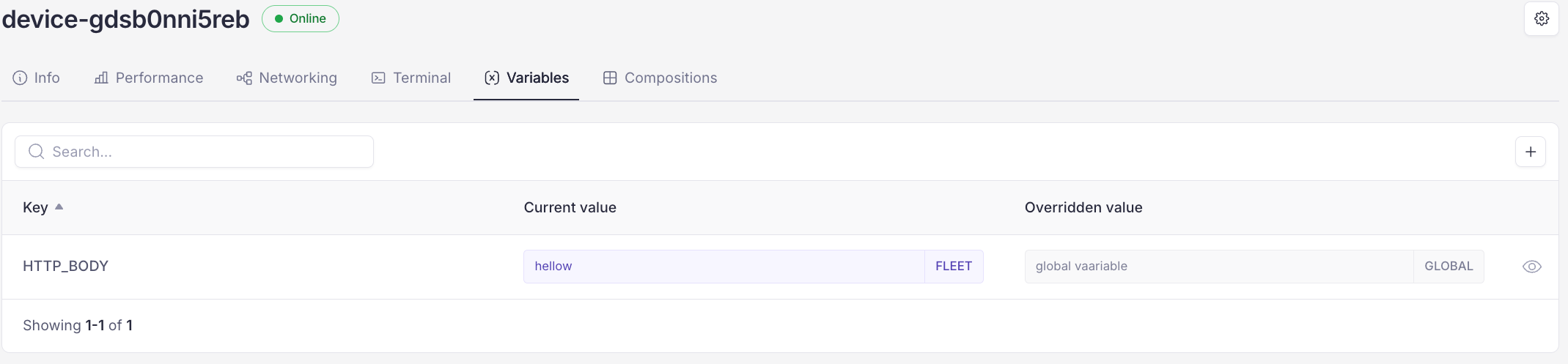
Variables tab
Click a variable to see its details. The label in the corner shows where the variable comes from, for example FLEET. An inherited variable can’t be edited here. Edit it where it originates from.
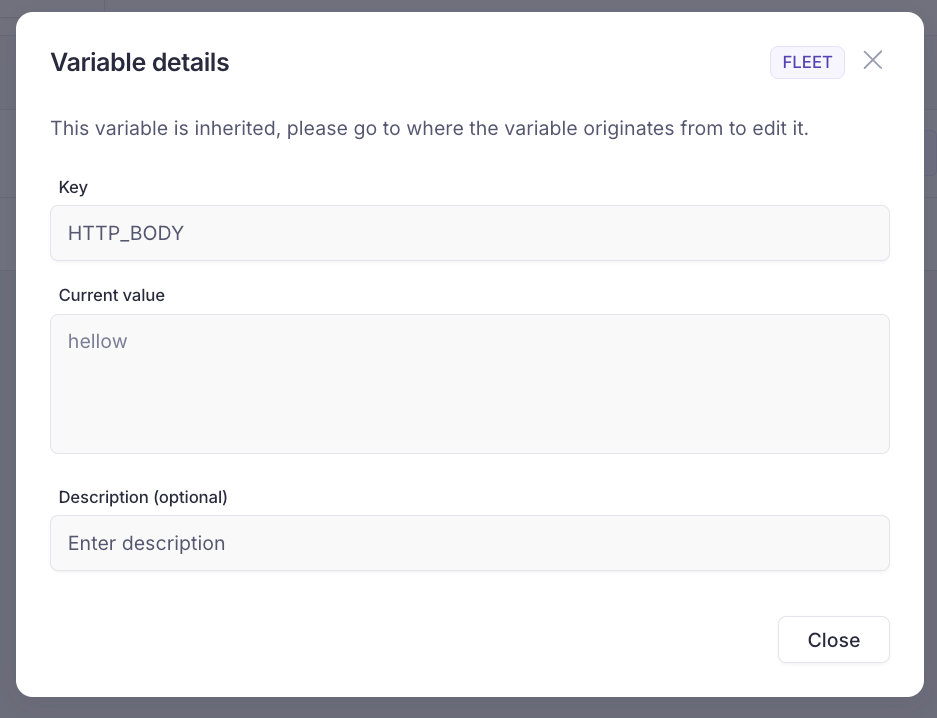
Variable details
Compositions
The Compositions tab lists all containerized applications (compositions) deployed to the device.
The summary shows how many compositions are planned, in progress, completed, degraded, failed or unknown.
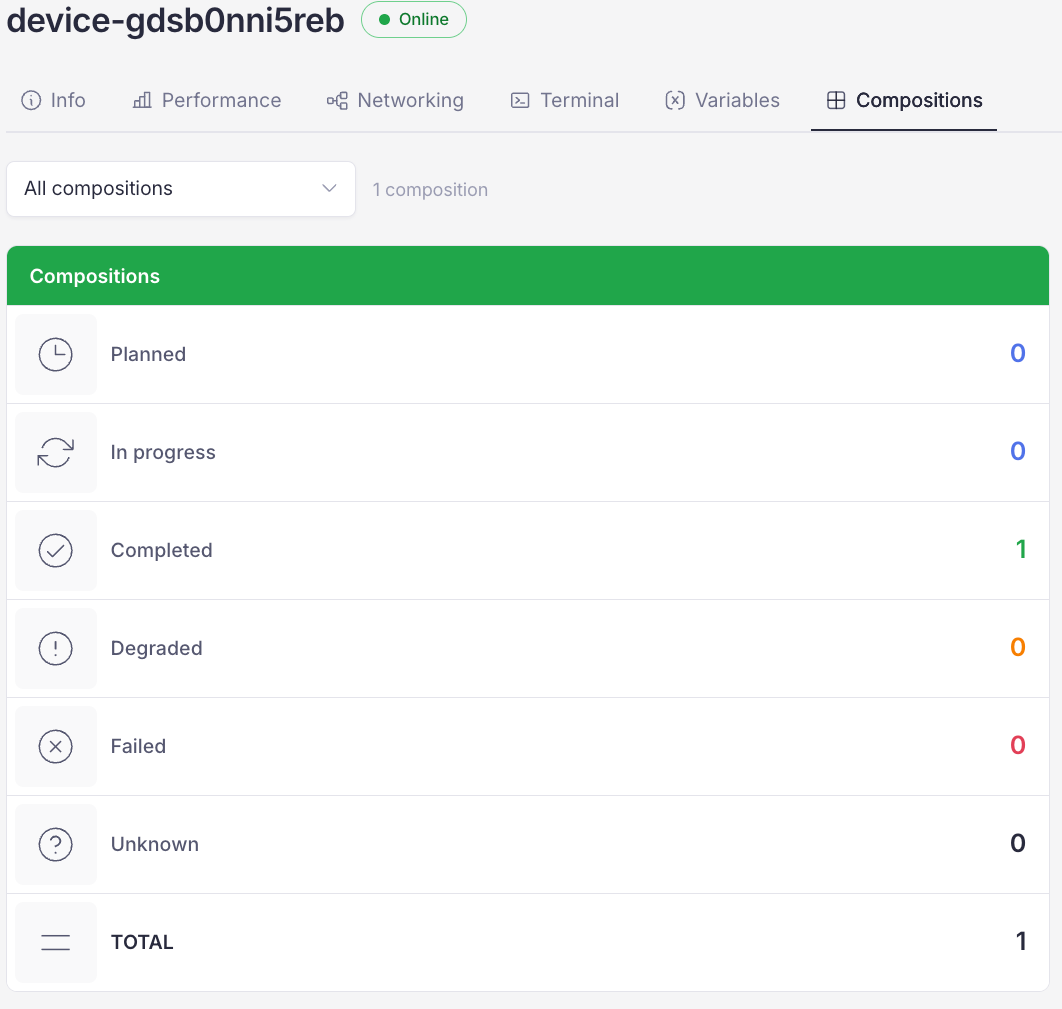
Compositions summary
The list below shows each composition with its name, ID, current released version, fleet name, fleet ID and status.
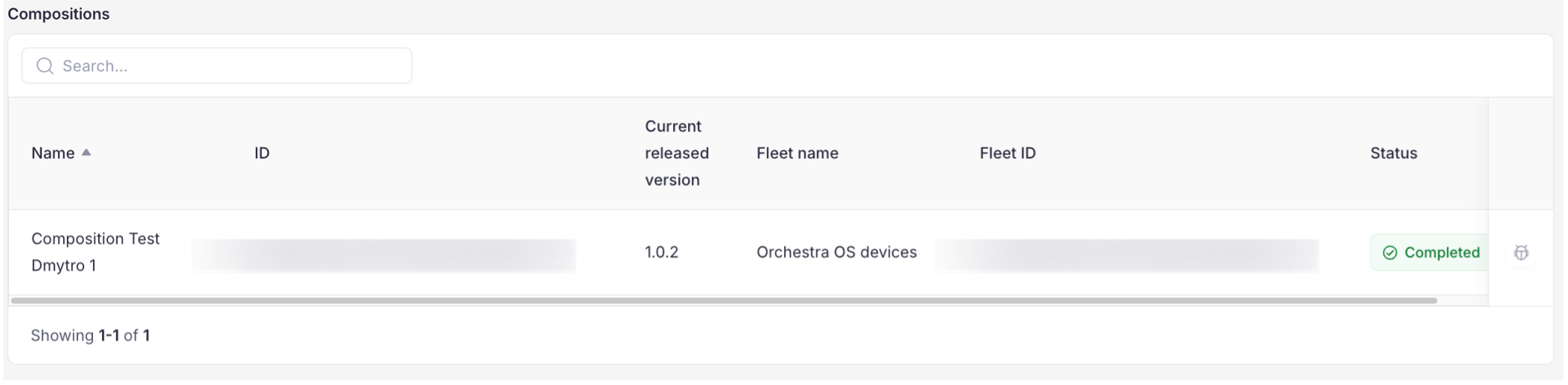
Compositions list